How to Remove an eSIM From Your Device?
When your plan or trip ends, it’s best to remove your PrimaSIM travel eSIM profile to avoid confusion with other SIMs. You can do this easily in just a few taps in your phone’s settings. Detailed instructions for iOS and Android devices are provided below.
How to remove an eSIM from your iPhone
You don’t need an internet connection to delete an inactive or unused eSIM. All actions can be done directly on your iPhone by opening the «Settings menu». The following universal steps apply to all models (including iPhone 13, 14, 15, 15 Pro, 17 Air, 17 Pro, and others):
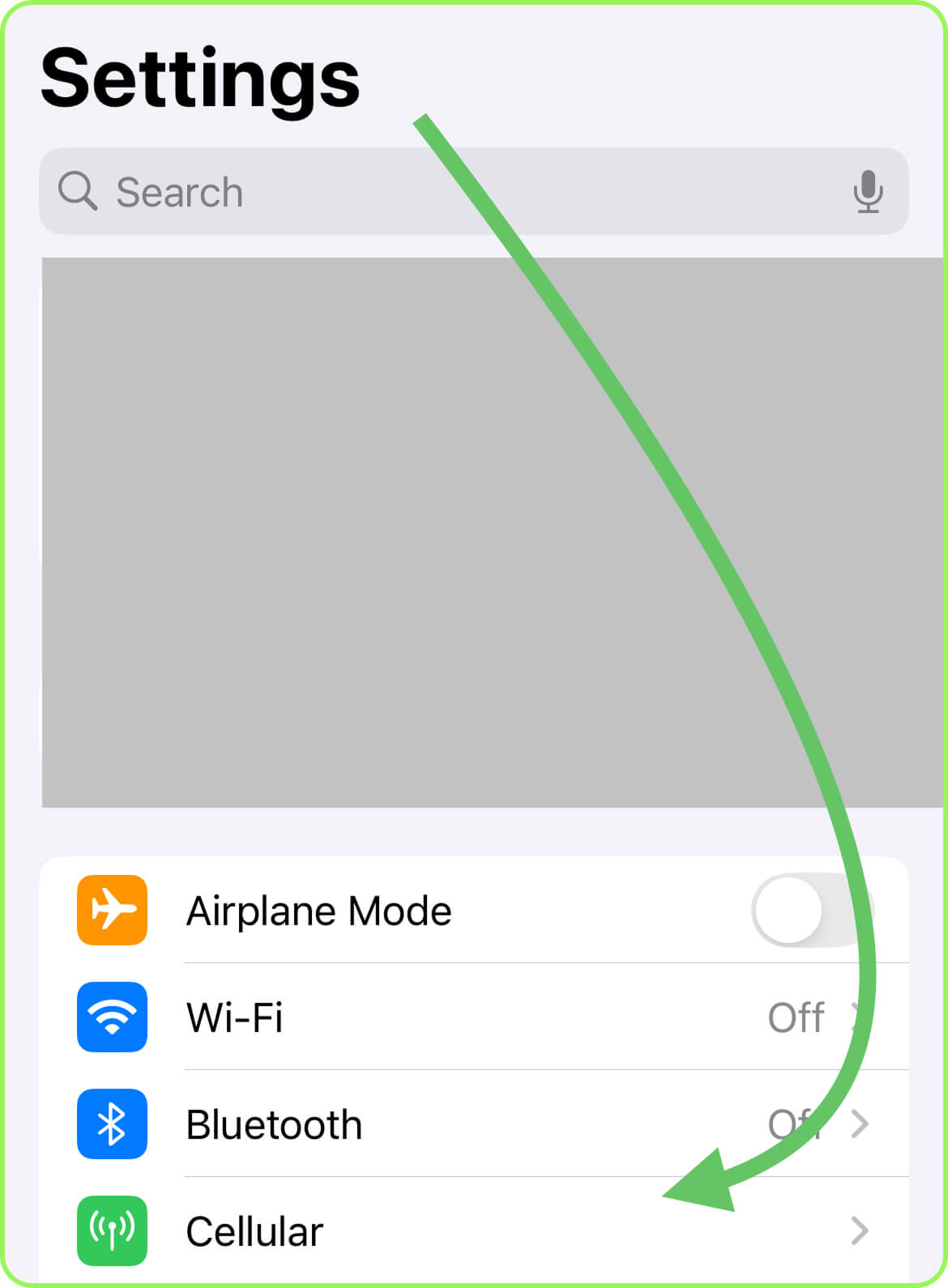
Go to «Mobile Data»/«Cellular» (the name may vary depending on your iOS version).
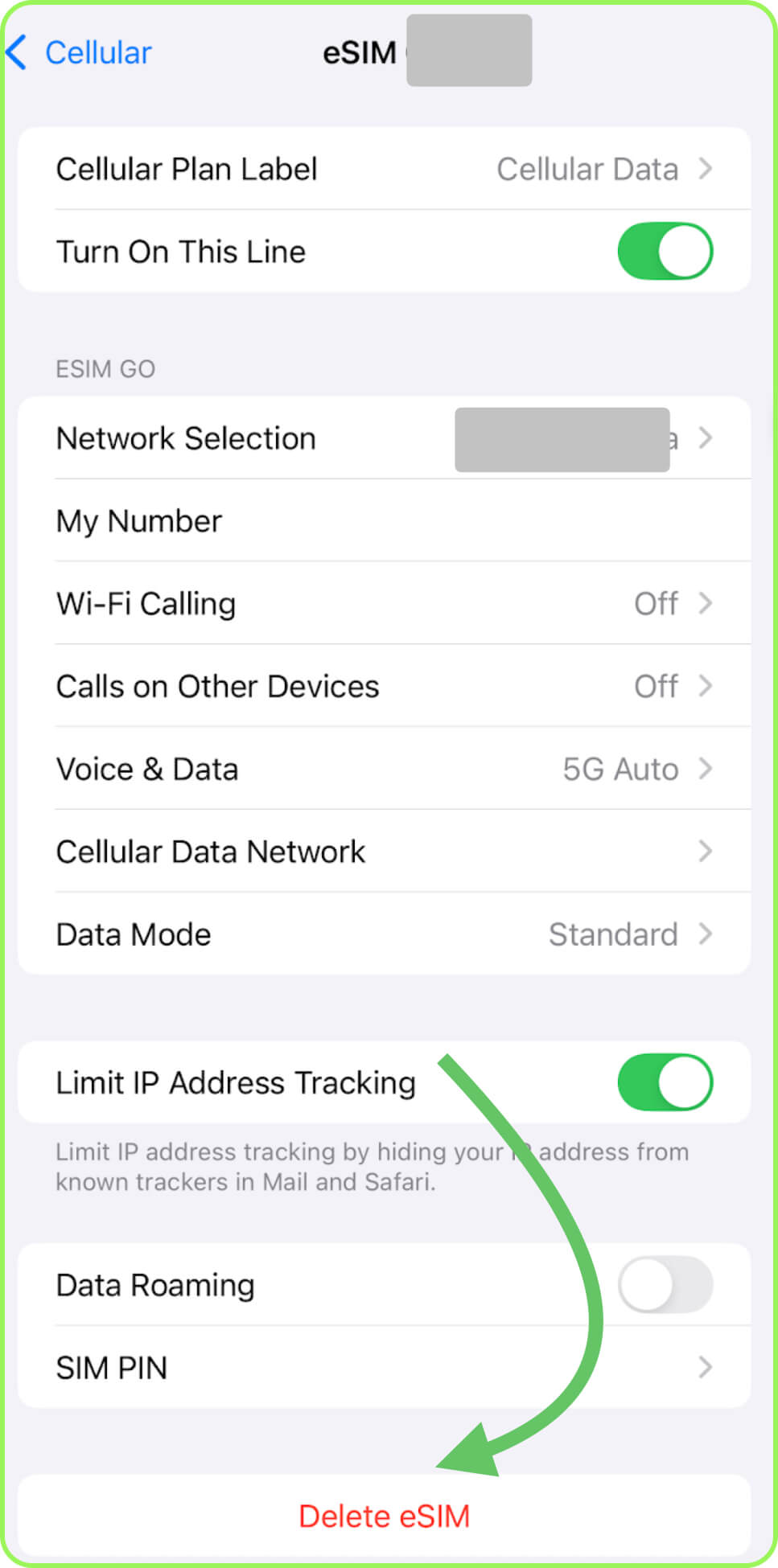
- From the list of available eSIMs/SIMs tap on your travel one (it may be labeled as «PrimaSIM», «Travel», or similar).
- Scroll down to the bottom of the screen and select «Remove Mobile Data Plan»/«Delete».
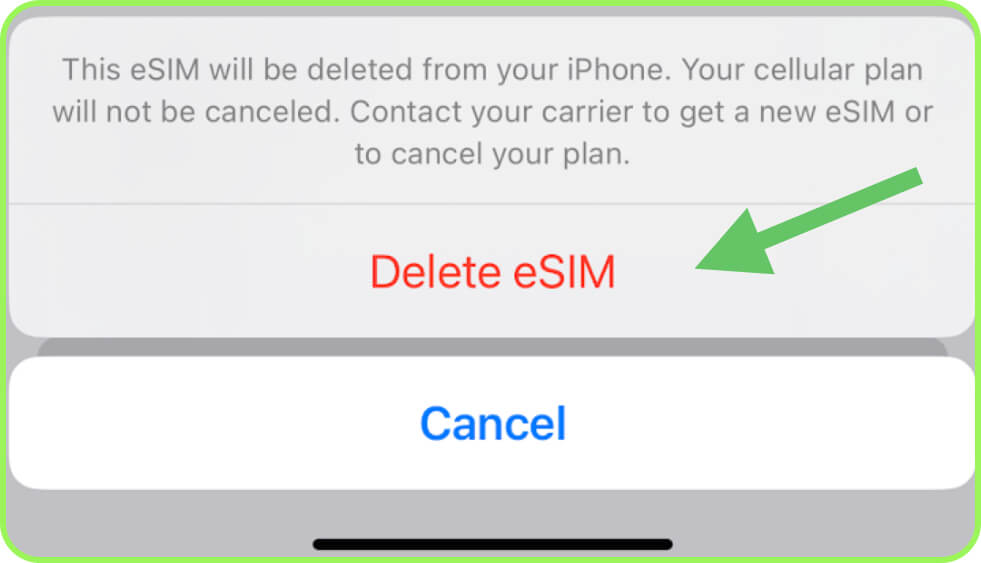
Confirm the action.
How to Delete an eSIM on Android
Deleting from an Android smartphone is just as simple as on an iPhone. You don’t need an internet connection, just open «Settings» and follow these steps:
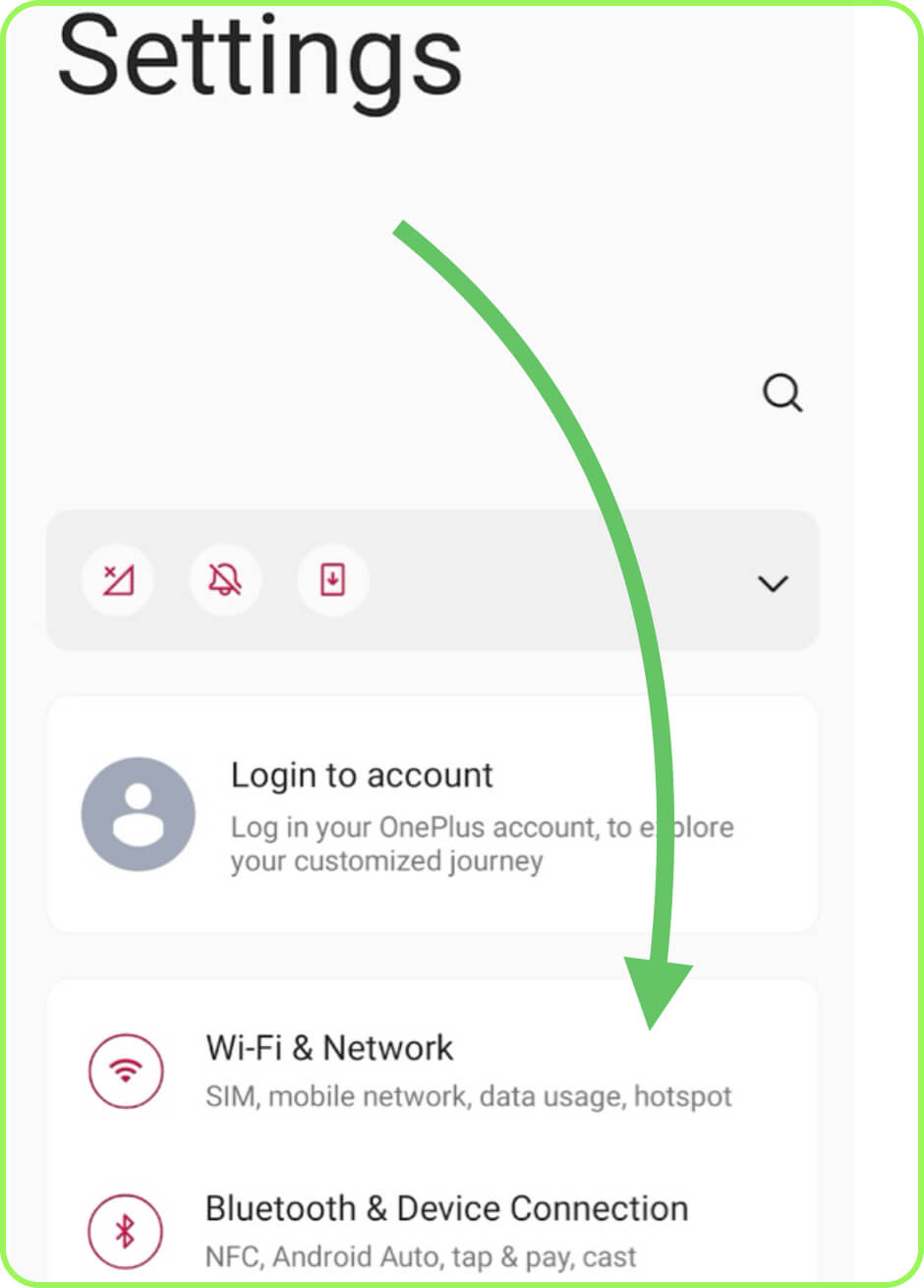
Open one of the main sections: «Wi-Fi & Network»/«Connections».
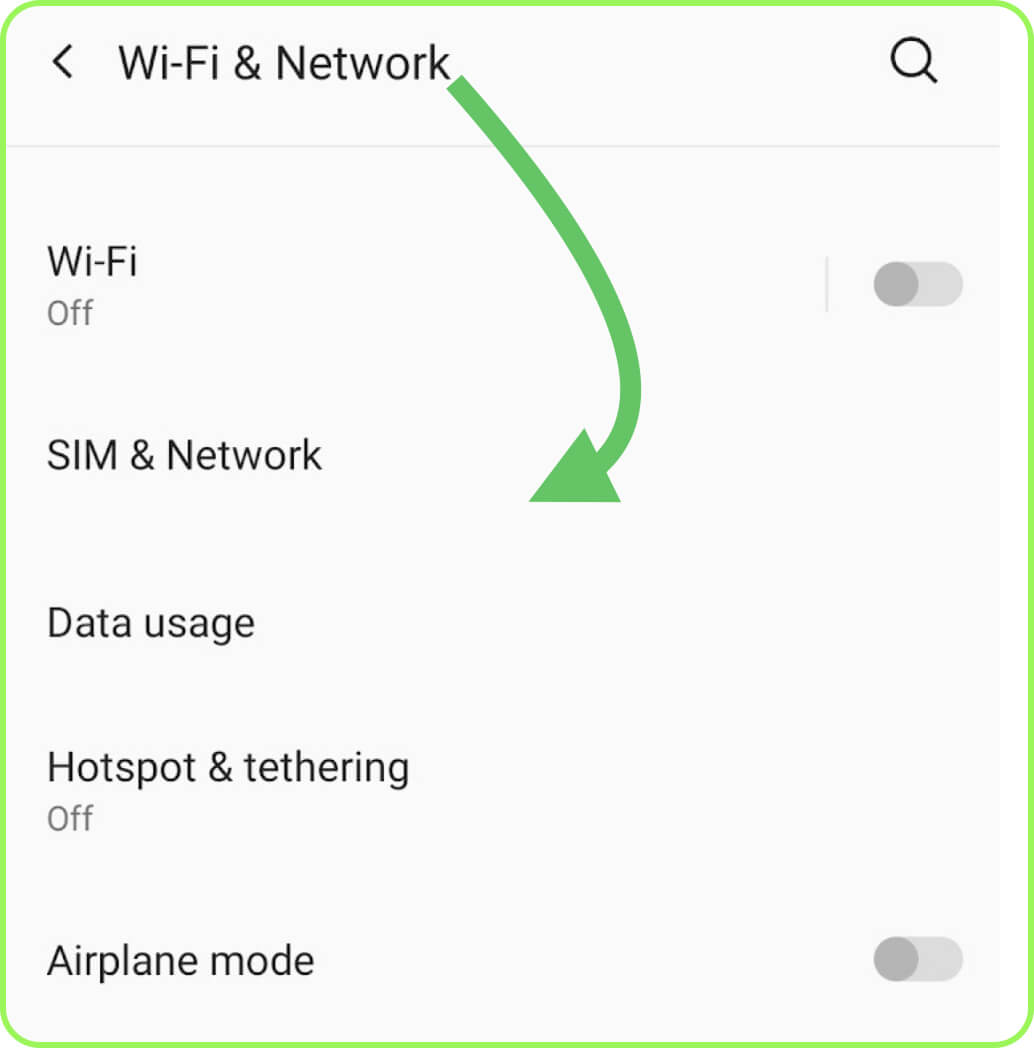
Go to «SIM Manager»/«SIM and Network».
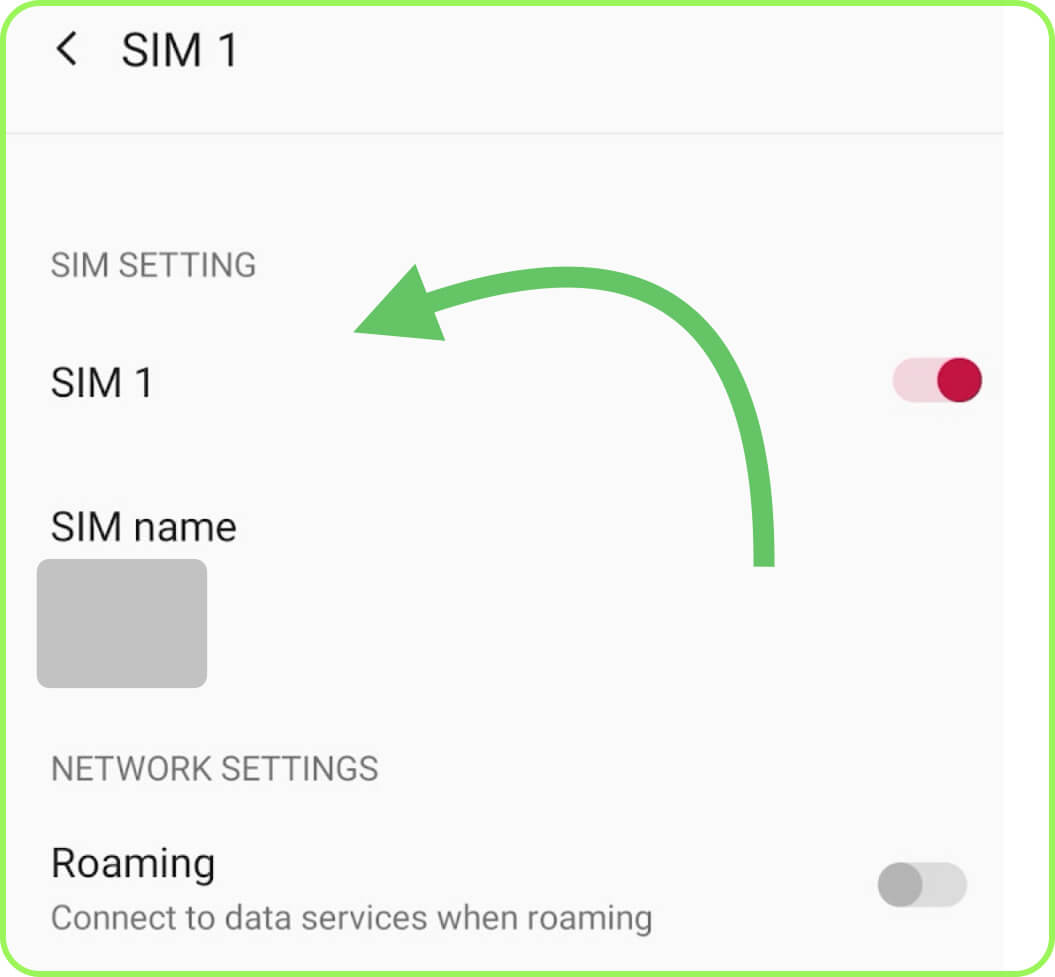
The next step may vary depending on your phone’s brand and model (Samsung, Huawei, Nokia, and others). Option one – press and hold the name of the travel eSIM you want to remove until the required option appears. Option two – tap the three dots in the top-right corner to open the menu. If neither option works and you don’t see a «Delete» option, open the «About phone» section on your device, then go to «SIM status».
- Select «Delete»/«Remove».
- Confirm the action.
Conclusion
After completing these steps, your PrimaSIM digital profile will be deleted immediately. You can verify this in your phone’s settings. No restart or refresh is required. If you encounter any issues, you can always contact our support team via WhatsApp or the feedback form.